Sunday, November 10, 2013

VMware vSphere Client 5.1 Installation Step by Step Guide


VMware vCenter server doesn't come up with any console utility to manage it. Offcourse it has web console but VMware vSphere Client 5.1 provides wonderful interface to manage the complete vSphere environment. You can also install VMware vSphere client on any remote systems  from where you want to connect the vCenter Server to manage the ESXi hosts.Here i am installing VMware vSphere Client on windows 2008 server where i have already installed vCenter server 5.1.
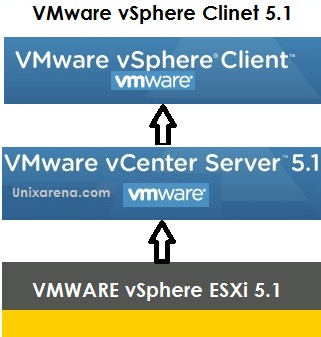
Let see the VMware vSphere Client 5.1 installation steps with screenshots.
Login to any windows operating system where you want to configure vSphere Client to manage vCenter Server.

 1.Copy the "VMware vSphere Client 5.1" directory to windows host and execute the exe file.
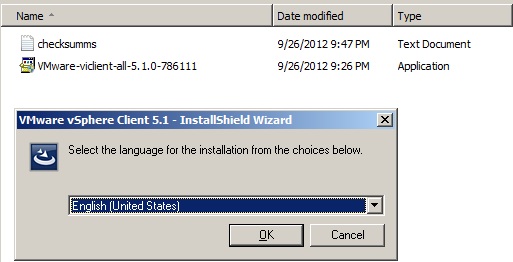
2.Press OK to continue the installation in English.
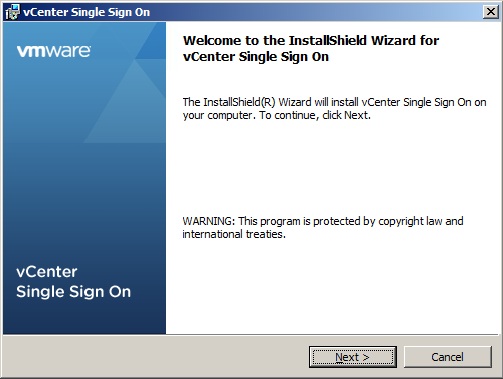
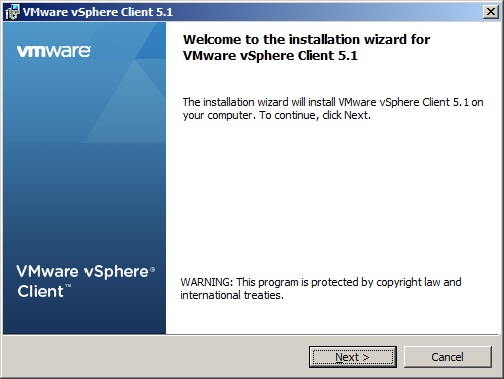
3.Click Next to continue the installation.
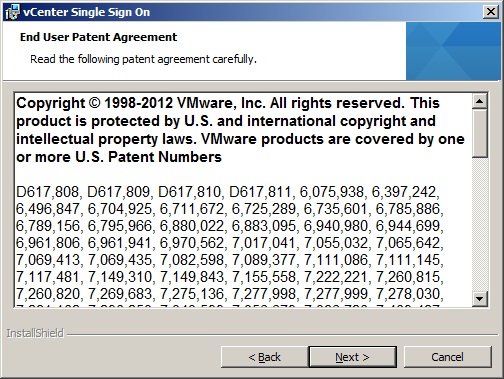
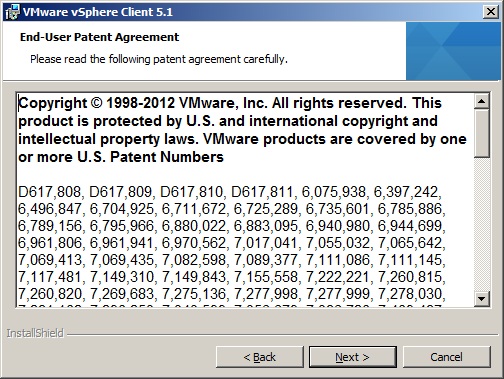
4.End User patent agreement,Click next to continue.

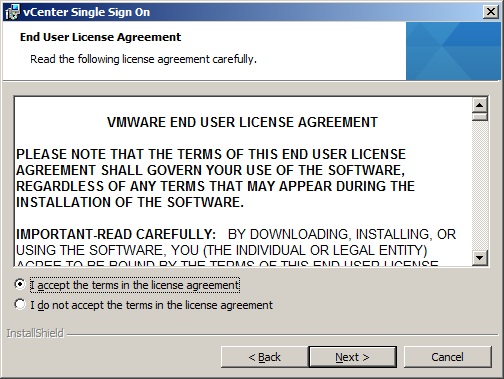
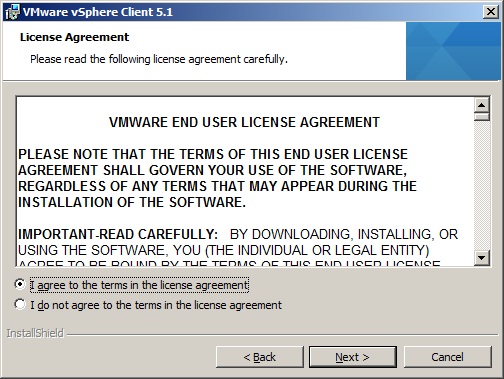
5.Agree the license agreement and continue the installation.


6.Select the vSphere client 5.1 installation folder. 
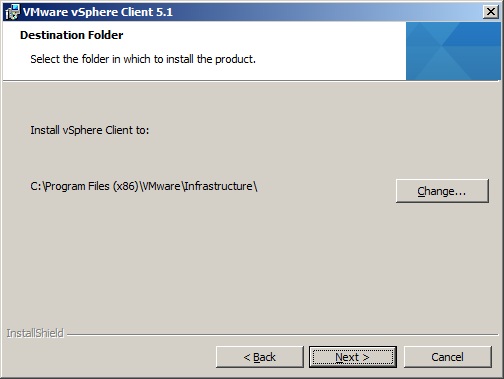
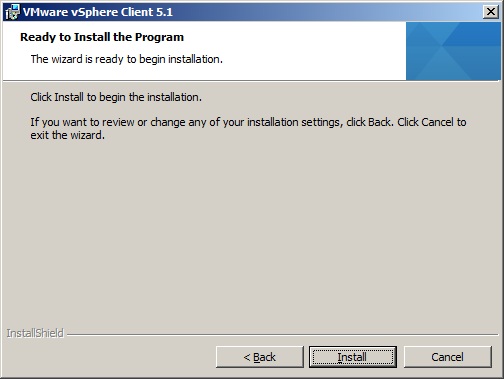
7.Click install to begin the installation.
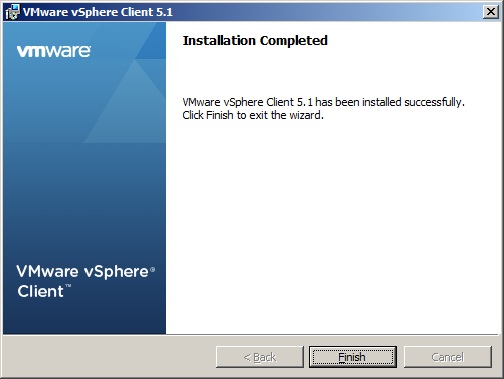
8.Click finish to complete the installation.The installation is so simple like other windows softwares.


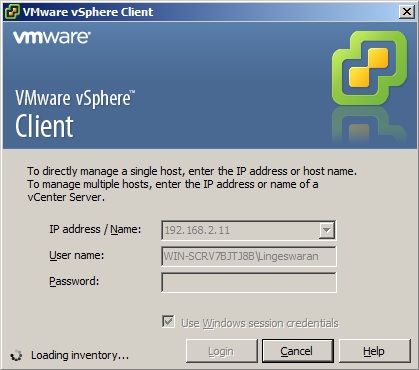
9.Start the Vmware vSphere Client 5.1 and connect to the VMware vCenter Server.
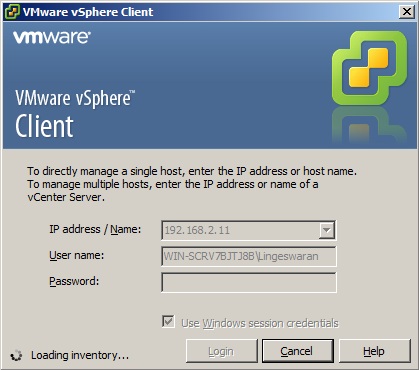
10.You are done with vSphere client installation and verified by logging in to vCenter server.
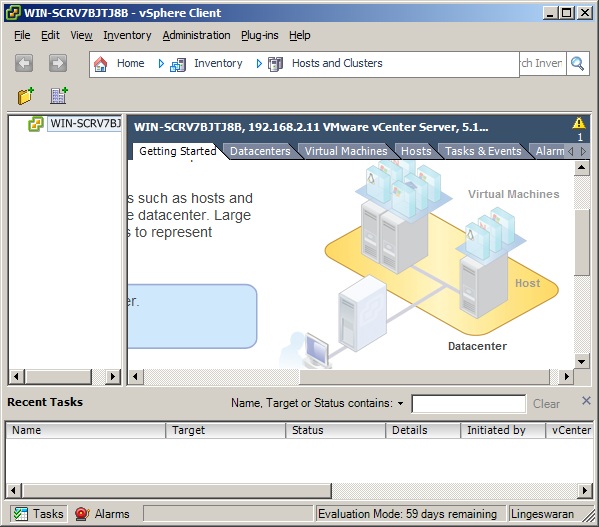

So what 's Next ? Create new datacenter and add ESXi 5.1 hosts to it.

Thank you for reading this article.

VMware vCenter Inventory Service Installation Step by Step Guide


Vmware vCenter Inventory service is one of the prerequisites for vCenter server installation.It stores vCenter server inventory data and server application data.It also allows you to search the inventory objects across linked vCenter server instances. To install Inventory service,you required Vmware vCenter single sign on (SSO).After installing SSO on the server,you can start the inventory service installation. Here we will see the step by step installation guide of VMware vCenter Inventory service with complete screenshots.
Prerequisite:
1. VMware vCenter Single Sign On.


Login to windows 2008 server in which you want to configure vCenter server.


1.Copy the "VMware vCenter Server 5.1" directory to windows 2008 server and  execute the Vmware-Inventory-Service.exe from "Inventory Service" Directory or start autorun file.


2.Press OK to continue with English.


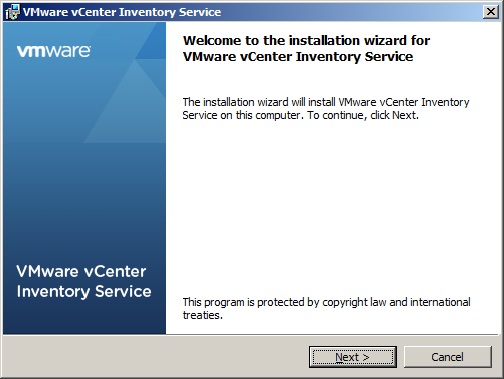
3.Press "Next" to continue the inventory service.

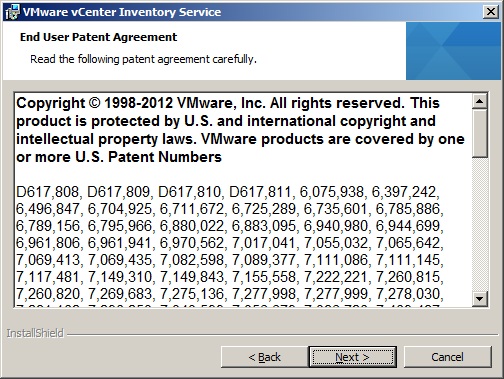
4.This is end user patent agreement  ,Just press Next to continue.

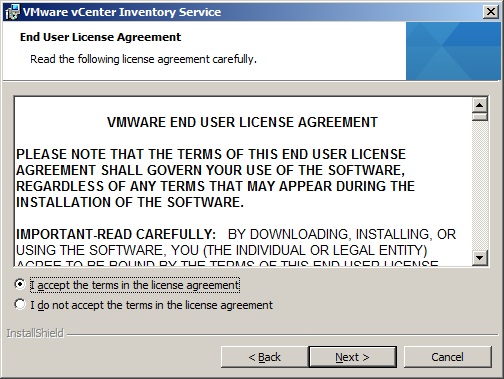
5.Accept the license to continue.

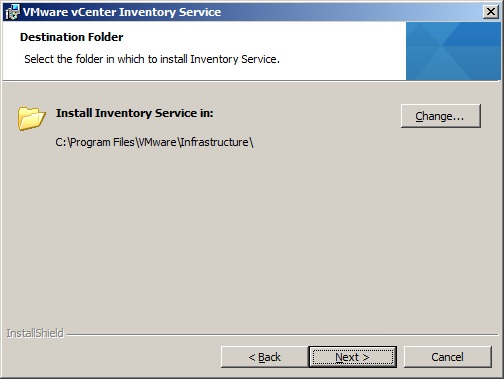
6.Select the inventory service location. 

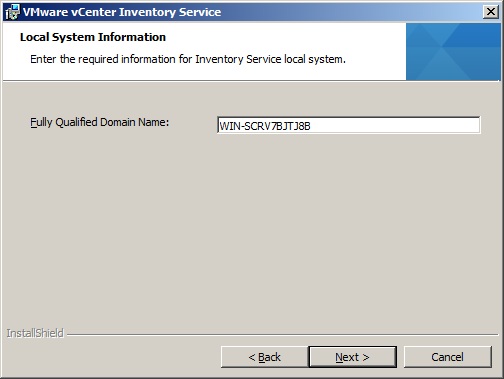
7.Enter the  server name or IP address where you are installation inventory service.
By default ,it will take the local machine hostname. Click Next to continue.


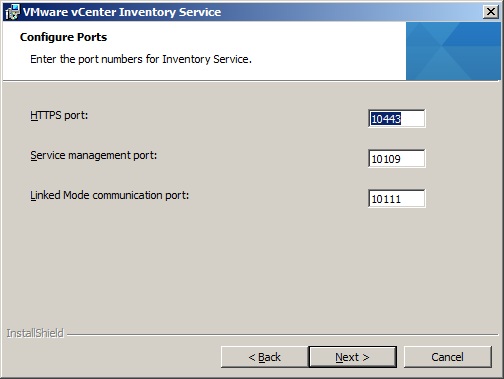
8.Configure the ports for inventory service.I have chosen default ports.

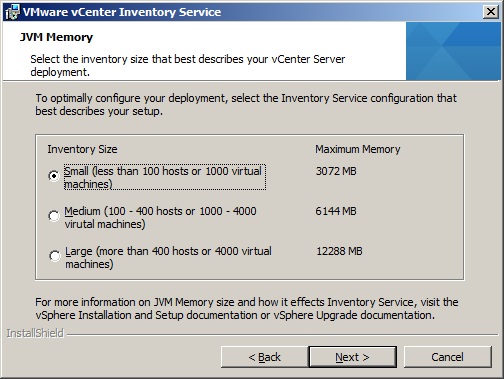
9.Select the inventory size of you environment. You can see the JVM memory size in right side.
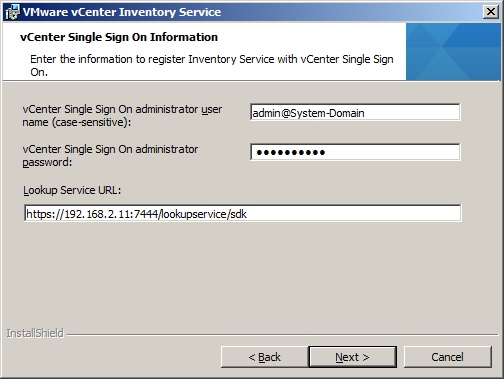
10.Enter vCenter  Single Sign On credentials to continue the installation.

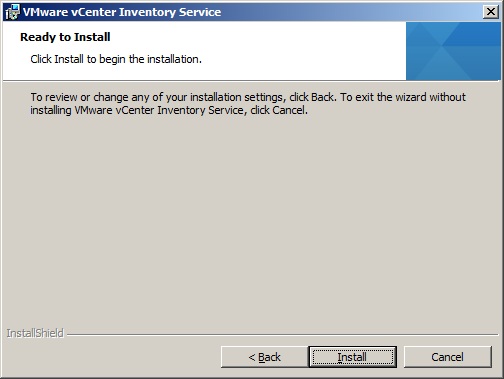
11.Click Install to kick off the inventory service installation.


12.Click Finish to complete the installation.

You have successfully installed the inventory service.So now you can start VMware vCenter Server installation.Good Luck.

Thank you for reading this article.

VMware vCenter 5.1 SSO Installation Step by Step Guide


This article is part of VMware vCenter Server 5.1 installation series.The vCenter Single Sign On authentication service make the environment more secure and it allows various vSphere components communicates using secure token exchange mechanism to tighten the security.If you are installing vCenter server on your environment for first time, then you must install Vmware vCenter 5.1 SSO (Single Sign On). In next subsequent installation of VMware vCenter servers,you can use same SSO service and  no need to install it separately.

Login to windows 2008 server in which you want to configure vCenter server.

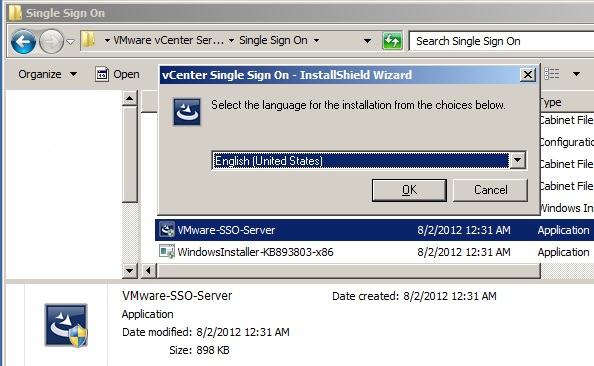
1.Copy the "VMware vCenter Server 5.1" directory to windows 2008 server and  execute the Vmware-SSO-Server.exe from "Single Sign On" Directory.

2.Select English and press OK to continue to install necessary libraries .

3.Click Next to continue the installation.

4.Click Next to continue the installation.

5.Accept the license to proceed the installation.


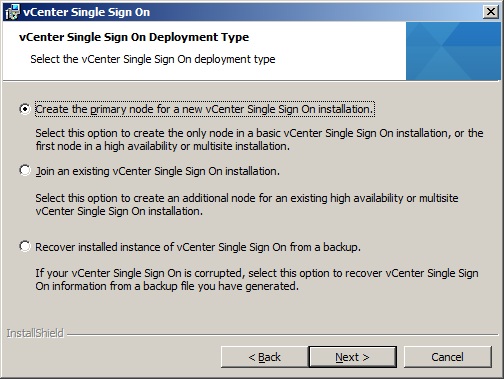
6.Select the first option to create a new vCenter Single Sign On service.


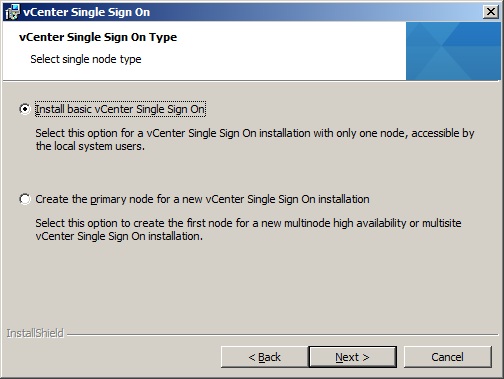
7.If you not using SSO in high availability,Install the basic SSO by selecting the first option.

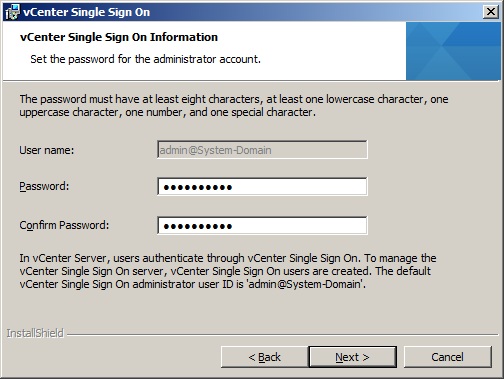
8.By default ,SSO create a user admin and we just need to provide the admin password.
Note:You need to provide these credentials while installing vCenter server and vCenter Inventory server.


9.Install a local Microsoft SQL server if you do not have an existing supported database.
10.If the DNS is not configured ,Just enter the server IP address (windows 2008 server).
11.Select the SSO installation directory .

12. vCenter single sign on port information.

13.Click to "Install" to continue the installation.

14.This setup will installs SQL server 2008 R2.

You will get below screen while installing SQL 2008 R2.


15.Setup starts the VMware vCenter SSO services automatically.You can check the services status in "services.msc" console.


16.Click Finish to complete the installation.

17.You can see the installation status in the %temp% logs .
Log File name:vim-sso-msi.txt.

Now You have successfully installed Vmware vCenter SSO server .The Next step will  be installing VMware vCenter Inventory Server.

Thank you for reading the article.

How to add VMWARE ESXi 5.1 host to vCenter Server ?


Once you have installed the VMware ESXi 5.1 server, you need to add the server to existing VMware vCenter server to manage it .You can not use the VMware ESXi 5.1 host without adding to vCenter server.Once you have added the ESXi host to vCenter server, you can start creating  a virtual machines using the vSphere Client.In these virtual machines ,you can install most of the windows server operating systems,various Linux operating systems and Solaris X86 operating systems.

This article explains about how to add the ESXi 5.1 host to existing vCenter Server 5.1.

1.Open a VMware vSphere client 5.1 and connect to the vCenter server.

2.After logging to vCenter server ,you can see the below screen with instructions of adding ESXi hosts.


3.Create a new Datacenter to add the ESXi hosts in to that.The datacenter is nothing but collection of ESXi hosts. If you have ESXi hosts on different locations,Provide the meaning full name to the datacenter in vCenter.


4.Now our datacenter is ready .Here the datacenter name is UnixArena-DC .

5.Click on the "Add a host " link.Here you provide the ESXi host details and valid credentials to add it in vCenter. Click Next to continue.

6.In this screen you will get the summary of ESXi 5.1 host details and it's virtual machines.
Here i don;t have existing virtual machines on ESXi 5.1 host.


7.Add the valid license key .If you don't have a valid one ,just click next to continue to in Evaluation mode.


8.If you want to restrict remote users directly logging to this host,just enable lockdown mode.


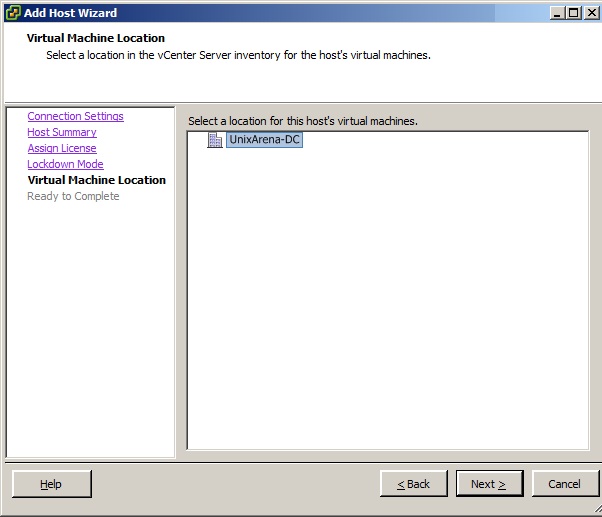
9.Select the virtual machines datacenter locations.


10.Click finish to complete the setup.


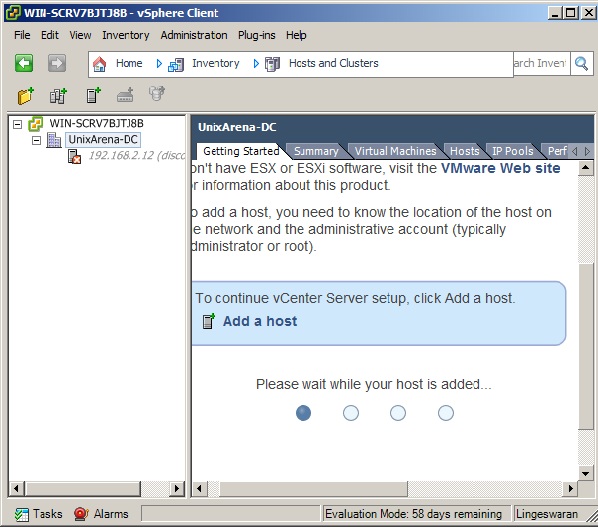
11. vCenter will take some time to add the ESXi host.Be patience.


12.You have successfully added the ESXi host to vCenter server.Click on "Create a new virtual machine" to create new virtual server.


13.The below screen shows configured virtual machine with the name "Solaris 11- UnixArena" .


Thank you for reading this article. Please leave a comment if you have any doubt.